Accessories — Bags, Hats, Belts & Small Carry
Accessories on an OrientDig spreadsheet range from bags and backpacks to headwear, eyewear, belts, and jewelry. Preview cards help you compare scale and price hints. Always open the live listing for dimensions and materials before you shortlist.
Choose a focused accessory guide
Bags, belts, and eyewear need different fit and inspection checks. These English guides use the saved catalog preview and link to current listings.
Featured finds
Preview rows — open any card for the live product listing.
 QC
QCBurberry Vintage Check Belt Beige
 QC
QCNike Elite Backpack Red/Black

Loewe Beanie & Scarf Set in Black

Ray-Ban Round Metal Polarized Sunglasses Brown
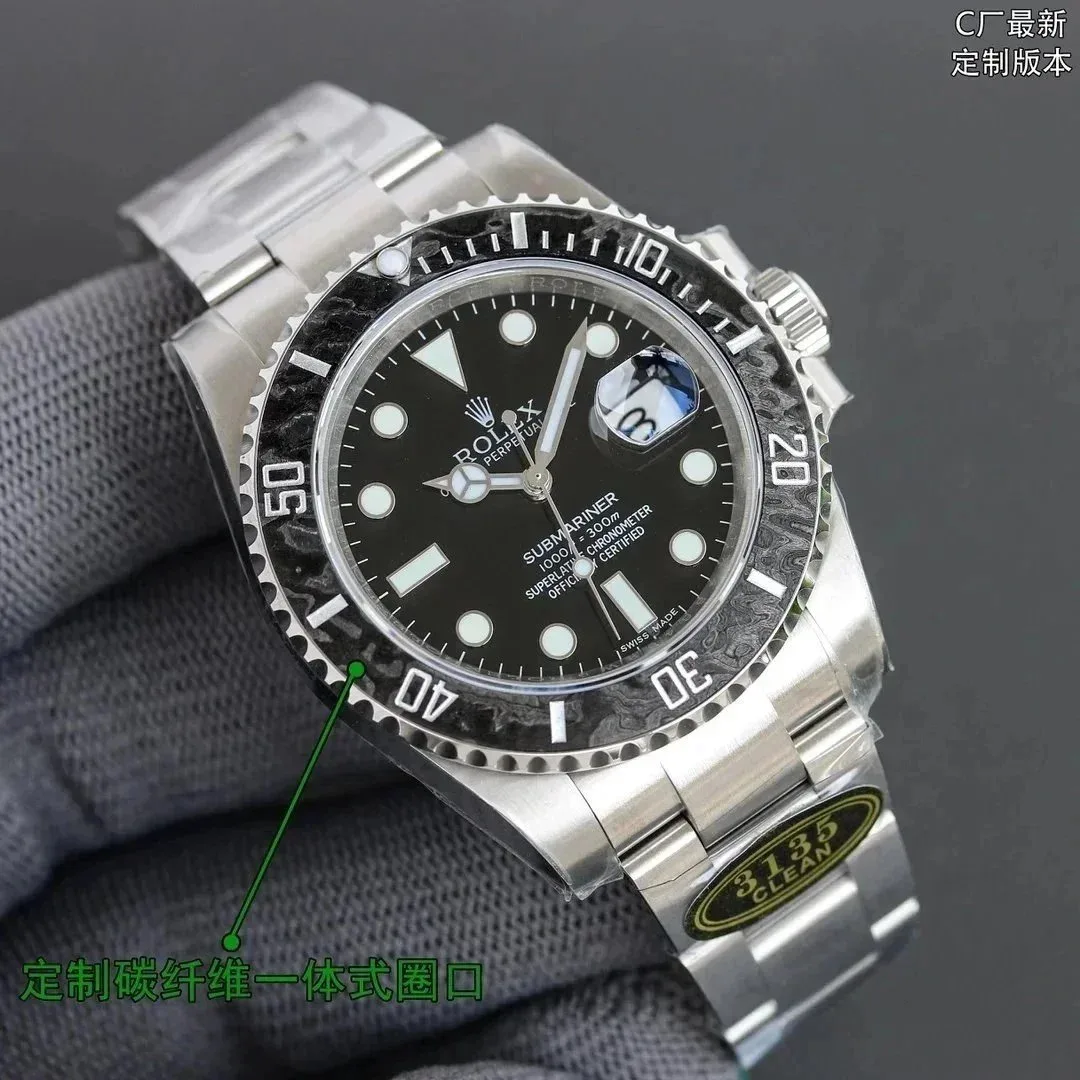
Rolex Submariner Black Dial Stainless Steel Watch

L Letter【Pink Grey】Scarf
 QC
QCChrome Hearts Floral Belt Black Leather

Nike Air Jordan Backpack Blue White

Prada Grey Beanie, Scarf & Gloves Set
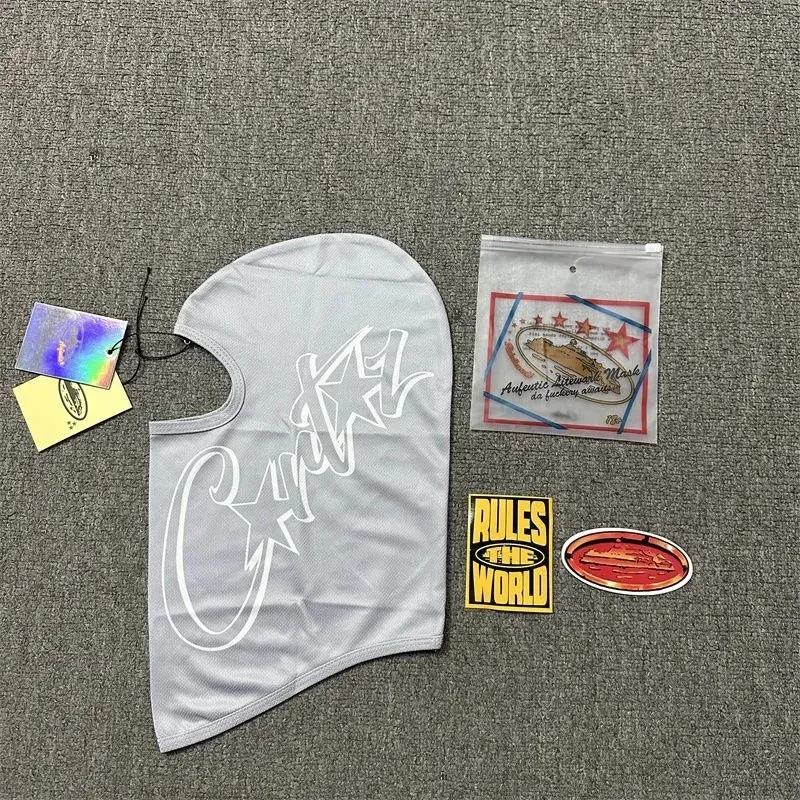
Unisex Grey 'Crazy' Print Balaclava Mask

Omega Seamaster Professional Green Dial Men's Watch

Dior CDG D Letter Double-faced Herringbone Scarf Beige
How to shop OrientDig spreadsheet accessories
Treat each accessory type with its own checklist — a backpack needs dimensions and strap photos; sunglasses need hinge and lens clarity; belts need buckle scale. Spreadsheet titles can be vague, so match images to the description on the live page. Soft goods pack easily; hard cases and structured bags change volumetric weight.
- ✓Scale in hand or next to a reference object
- ✓Hardware color, engraving, and clasp or buckle detail
- ✓Strap drop, handle height, or fit notes when listed
- ✓Interior lining and pocket layout for bags
- ✓Edge finish and stitching consistency
OrientDig Spreadsheet Accessories FAQ
All research lanes in one place — start with the product type you want to shortlist.
Bag looks huge in photos — how do I catch the wrong size?
Read length/width/depth on the live listing and compare to a bag you own. Soft product shots inflate scale; fuller galleries with a hand or object for reference help more than the title.
Sunglasses or jewelry row — what fails a shortlist fast?
Hinge, lens clarity, clasp, or stamp detail that does not match the title. If those close-ups are missing or blurry, skip the row.
Do small accessories still need warehouse QC later?
Yes. Spreadsheet and catalog photos are research only. Hardware scratches, bent clasps, and wrong colorways show up after the item arrives at the warehouse — see the QC Photos guide.
Soft goods vs hard cases — does packing change freight?
Soft accessories pack easily; structured bags and hard cases raise volumetric weight. Shortlist with your later haul mix in mind, then confirm on the Shipping guide.